
Published today, 1/29/26 12:47 pm
- 20 views • 20 today
- 9
- 2
- 2

52
Hi everyone! Today I am going to teach you how to install maps and builds on Hytale! This tutorial goes through how to download, install and play them in just a few minutes!
Now let's get to the tutorial!
If you want to download a map or a build, you first need to go to a site where you can get them. I personally recommend the maps and builds here on this site and the Curseforge worlds list. When you download it, save it to a memorable spot such as your Downloads folder.
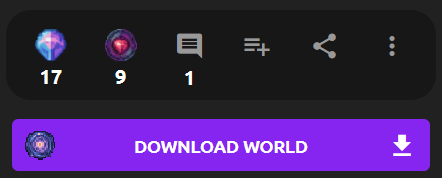
If you can't find the download button, for this site it is just below the title, and under the Power Crystal and Favorite button:
And Curseforge is a little bit more complicated, you have to go to the Files tab, then click on one of the options (I recommend the latest) and press the download button. A timer should count down from 5 before saving it to your device.
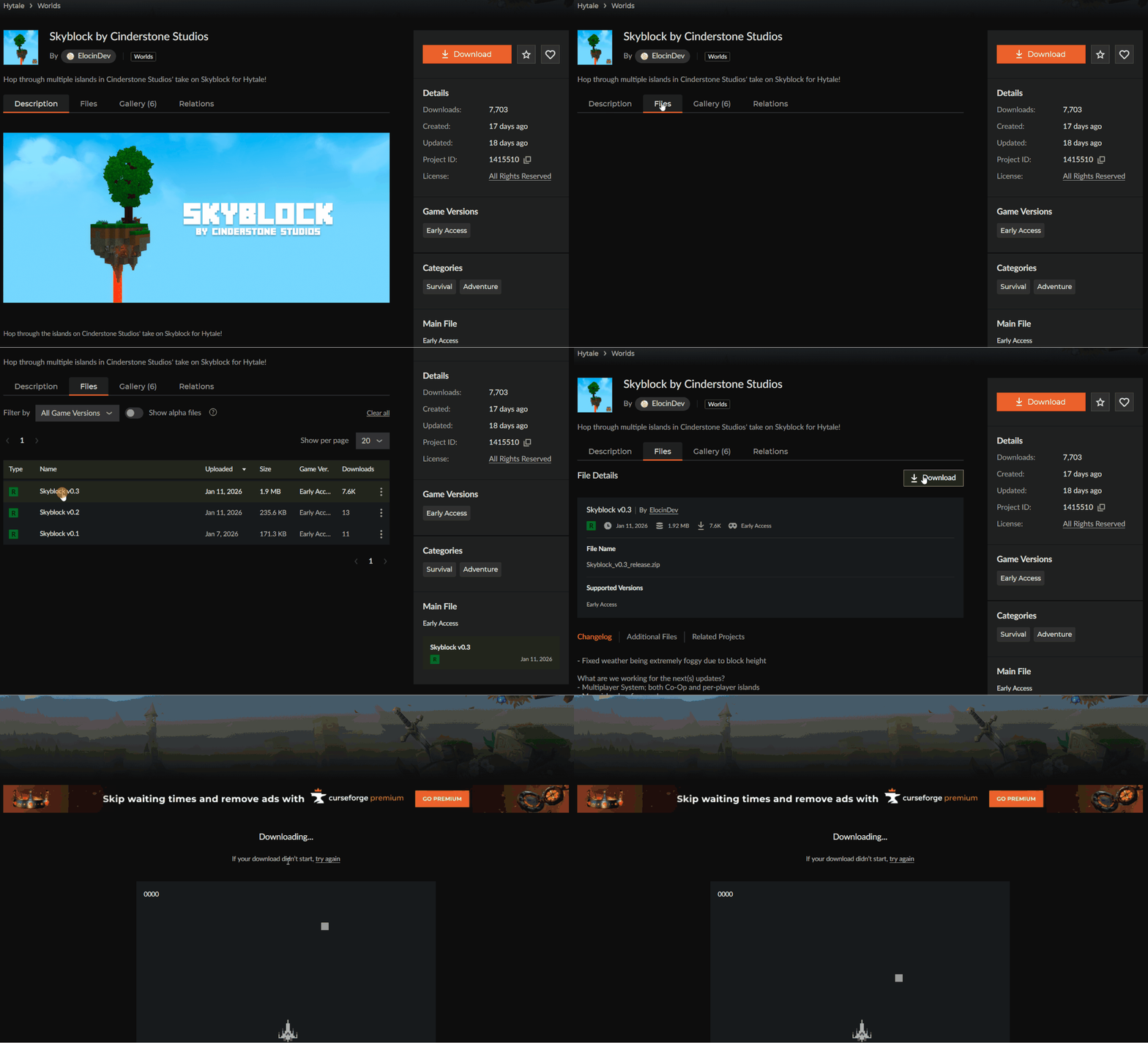
(Map is Skyblock by ElocinDev/Cinderstone Studios)
Now, you need to extract the map. This step is important!
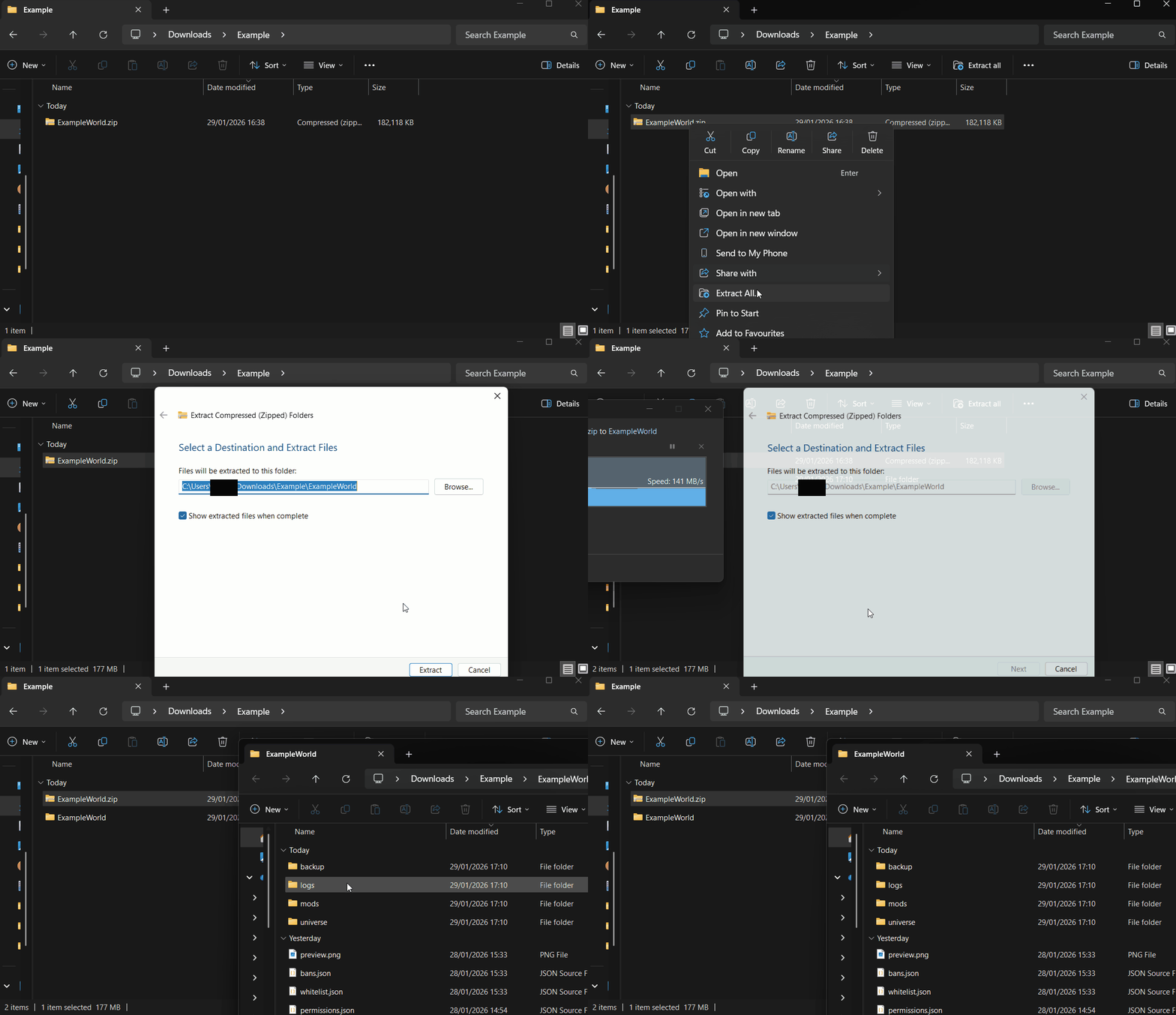
If you are on Windows 10 or 11, right click the .zip file and press "extract all". Confirm the location and it should make a folder with the world contents in the desired location.
If you are on Linux, the process is pretty much the same except you press "extract here" instead.
On macOS, just double click it. It's that simple!
(Note it may take a while to extract)
If your world folder is a .rar or other file, you can extract that too. Windows 10/11 supports rar and most other types of zip files. You can just right click and extract that. However, if you are on Linux or Mac, or have an unsupported archive on Windows, you need to convert it to .zip through a site like CloudConvert. (You don't need to check to make sure the world files are directly after the main folder, Hytale can let the world be as far in the files as you want)
Now time to actually install the map!
There are two ways to do this. The first way is to open the Hytale Launcher, then in the top left you should see a settings (cog) button. Press that, and then click "Open Directory". This should open your Hytale installation folder.
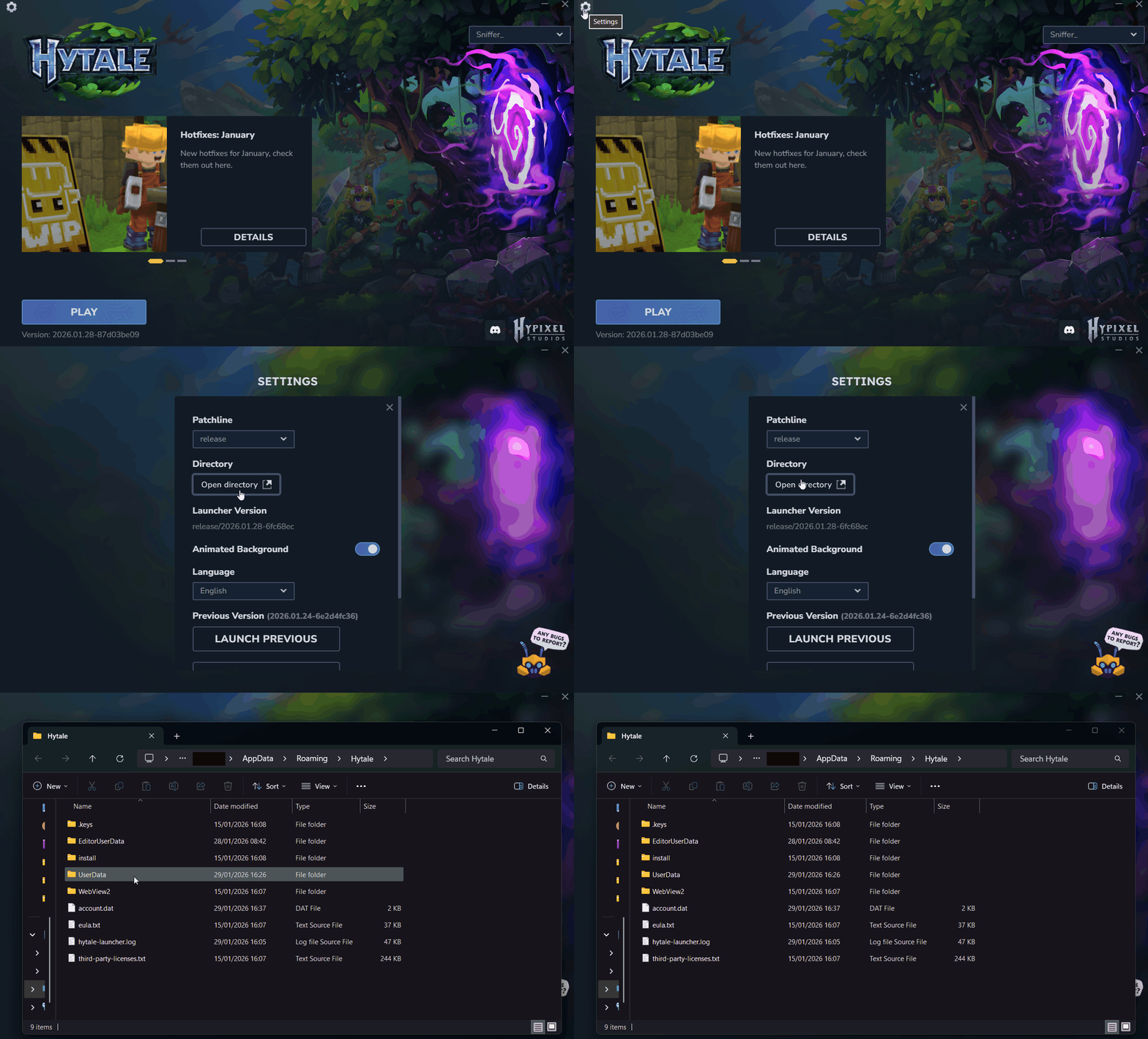
The second option is to manually open your Hytale installation folder. Go to any of the directories listed for you OS:
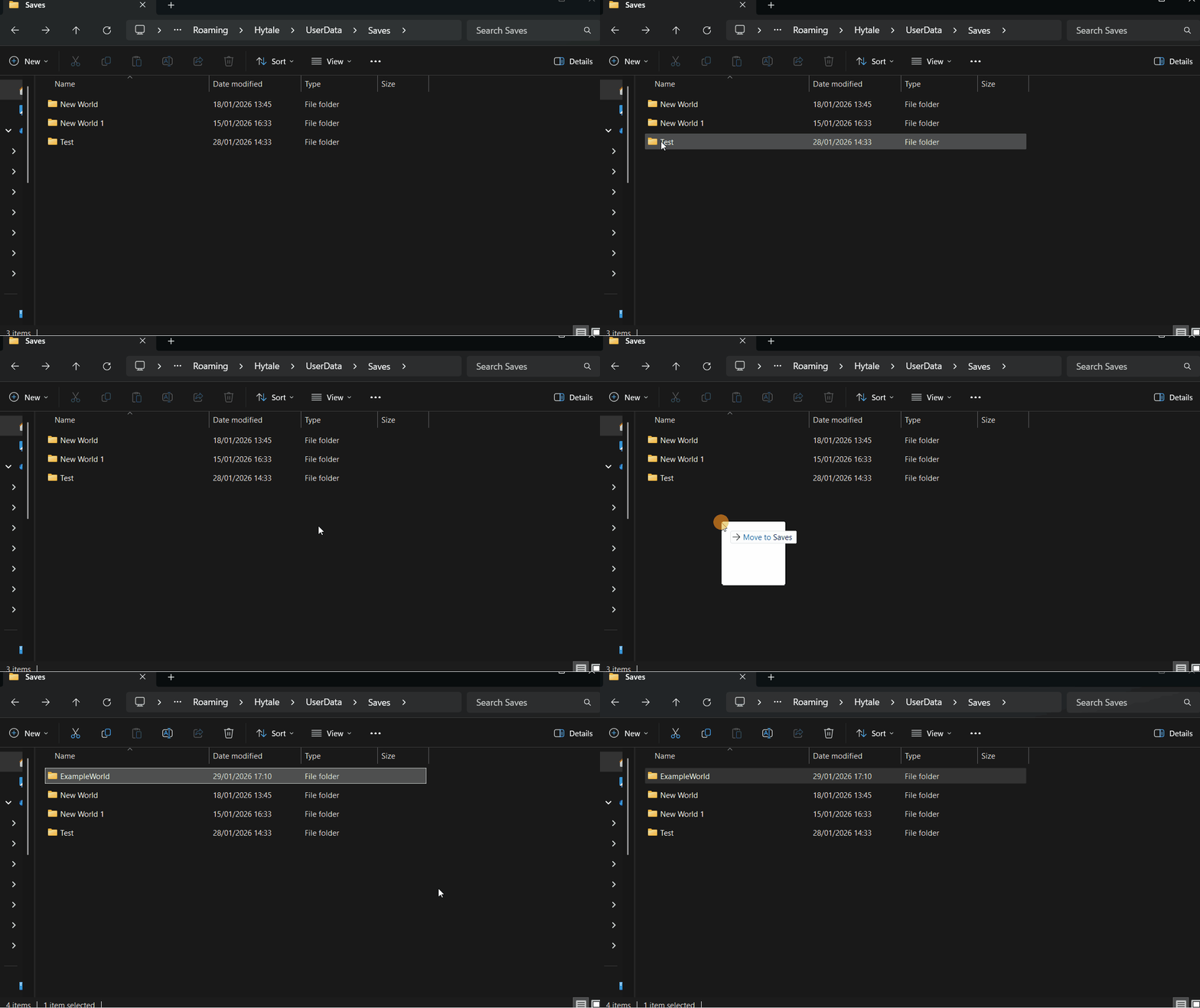
To move the world into your Hytale folder, you need to open the UserData folder in the installation. This contains all your skins, mods, and worlds. Inside that there should be a folder called "Saves". (This might not exist if you haven't made a world yet. You can just create one. Remember the capital S!) Now it is as simple as dragging the world folder into the Saves!
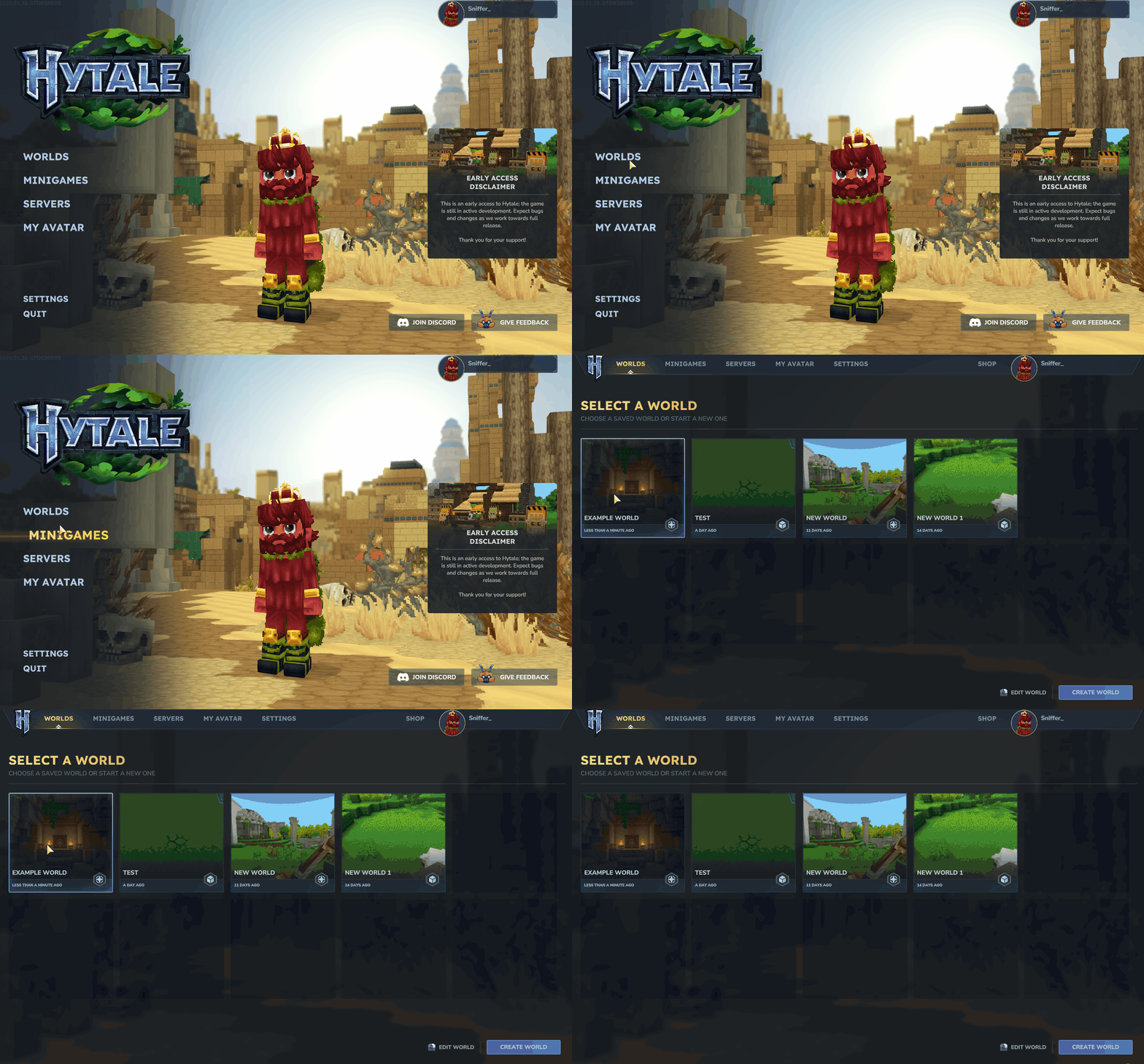
Now, if you go into Hytale, then into worlds (if you were already in the worlds section, go back to the main menu and then go into the worlds section again to refresh it), the installed world will be there! (Note it might be at the bottom or somewhere hard to find at first)
And that's the tutorial! I hope you found this helpful, I worked hard on it!
Happy playing!
What are Maps and Builds?
Maps and Builds are both worlds made by other players. Some are parkour challenges, adventure stories, or survival experiences, while others are structures, landscapes, cities, castles, and more! Either way, they both work the exact same way.Now let's get to the tutorial!
Where and how to download Hytale Maps and Builds
If you want to download a map or a build, you first need to go to a site where you can get them. I personally recommend the maps and builds here on this site and the Curseforge worlds list. When you download it, save it to a memorable spot such as your Downloads folder.
If you can't find the download button, for this site it is just below the title, and under the Power Crystal and Favorite button:
And Curseforge is a little bit more complicated, you have to go to the Files tab, then click on one of the options (I recommend the latest) and press the download button. A timer should count down from 5 before saving it to your device.
(Map is Skyblock by ElocinDev/Cinderstone Studios)
Now, you need to extract the map. This step is important!
If you are on Windows 10 or 11, right click the .zip file and press "extract all". Confirm the location and it should make a folder with the world contents in the desired location.
If you are on Linux, the process is pretty much the same except you press "extract here" instead.
On macOS, just double click it. It's that simple!
(Note it may take a while to extract)
If your world folder is a .rar or other file, you can extract that too. Windows 10/11 supports rar and most other types of zip files. You can just right click and extract that. However, if you are on Linux or Mac, or have an unsupported archive on Windows, you need to convert it to .zip through a site like CloudConvert. (You don't need to check to make sure the world files are directly after the main folder, Hytale can let the world be as far in the files as you want)
Now time to actually install the map!
Opening your Hytale installation folder
There are two ways to do this. The first way is to open the Hytale Launcher, then in the top left you should see a settings (cog) button. Press that, and then click "Open Directory". This should open your Hytale installation folder.The second option is to manually open your Hytale installation folder. Go to any of the directories listed for you OS:
- Windows 10 and 11: %appdata%/Hytale (You can press Win + R and paste the directory in to locate it quicker)
- Linux: $XDG_DATA_HOME/Hytale/UserData/
- macOS: ~/Library/Application Support/Hytale/UserData/
How to move the world to your Hytale folder
To move the world into your Hytale folder, you need to open the UserData folder in the installation. This contains all your skins, mods, and worlds. Inside that there should be a folder called "Saves". (This might not exist if you haven't made a world yet. You can just create one. Remember the capital S!) Now it is as simple as dragging the world folder into the Saves!Now, if you go into Hytale, then into worlds (if you were already in the worlds section, go back to the main menu and then go into the worlds section again to refresh it), the installed world will be there! (Note it might be at the bottom or somewhere hard to find at first)
And that's the tutorial! I hope you found this helpful, I worked hard on it!
Happy playing!
| Tags |
18
6
 Cyprezz
 xXimaginesellingXx
 HyperOctal
 Lego_Master_A
 dog
dog ICanGamez
 AvatarKage
Want to comment or give Power Crystals?