

Published today, 1/28/26 10:04 am
- 30 views • 30 today
- 9
- 7
- 2

44
Hello everyone! Today I am going to show you how to install Hytale mods! I am going to show you two different methods, both very similar however one is universal and once installed you can easily install it on other worlds if you want, and the other is for a single world. But before we start, I need to explain the two types of Hytale mods.
Here are the key differences:
Packs:
Plugins:
Does this mean they need to be installed differently?
Luckily, no, since they are both classed as "mods", they are both installed the same way! The only difference is the internal files in them. I made this section to give people better knowledge on the types of mod.
Anyway, let's start the tutorial!
To download a Hytale mod, you first need to find a site to get them. The ones I personally recommend are here on this site or the Curseforge Hytale mods page. Once you have found a mod, download it and save it somewhere like your downloads folder. It should have a .zip or .jar extension. (If you can't see file extensions go to View > Show and check "File name extensions" in the file explorer.
If you can't find the download button, it is here for this site, just under the title:
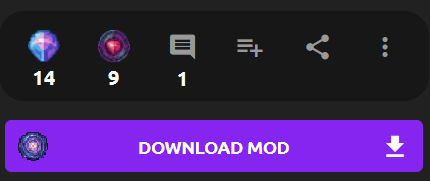
And for Curseforge you go to Files, then click on the version of the mod you want and press download. A 5 second timer should start before it gets saved to your device.
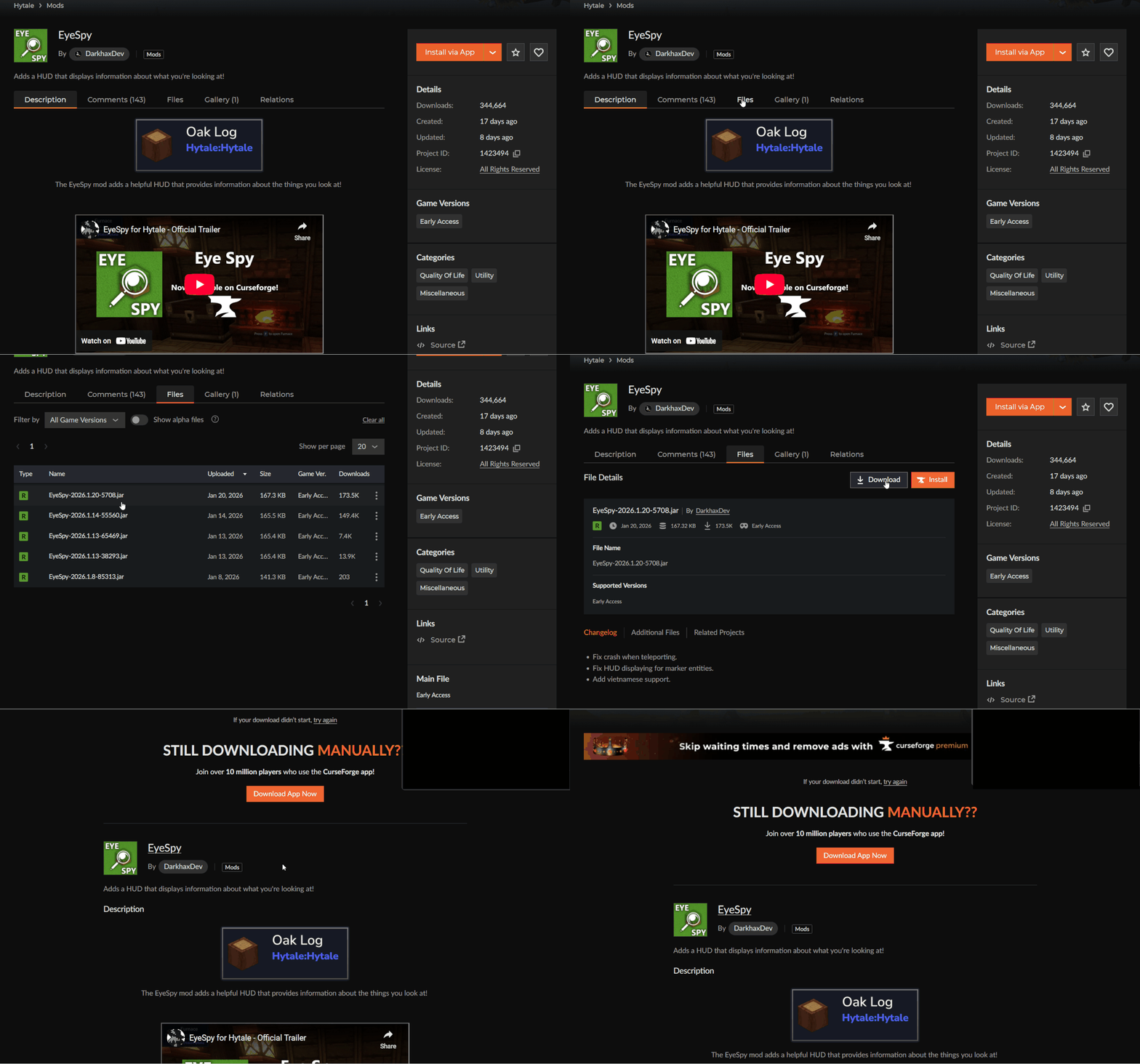
(Mod is EyeSpy by DarkhaxDev)
Ok, now let's move on to actually installing the mod!
To install the mod, go to the Hytale folder. The directories are listed below:
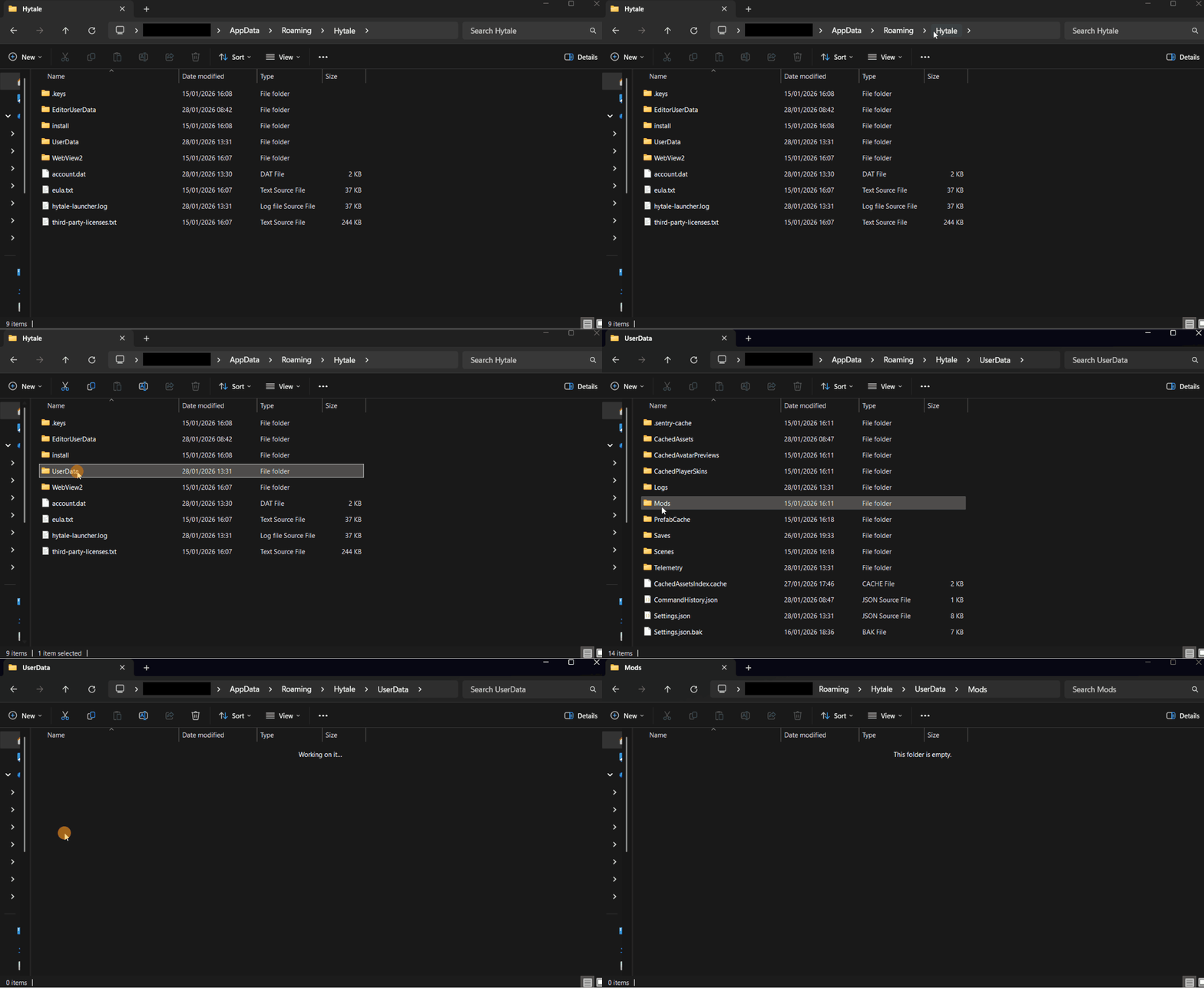
Now it's as simple as getting the location where you saved the mod (e.g. your downloads folder) and dragging it into the folder!
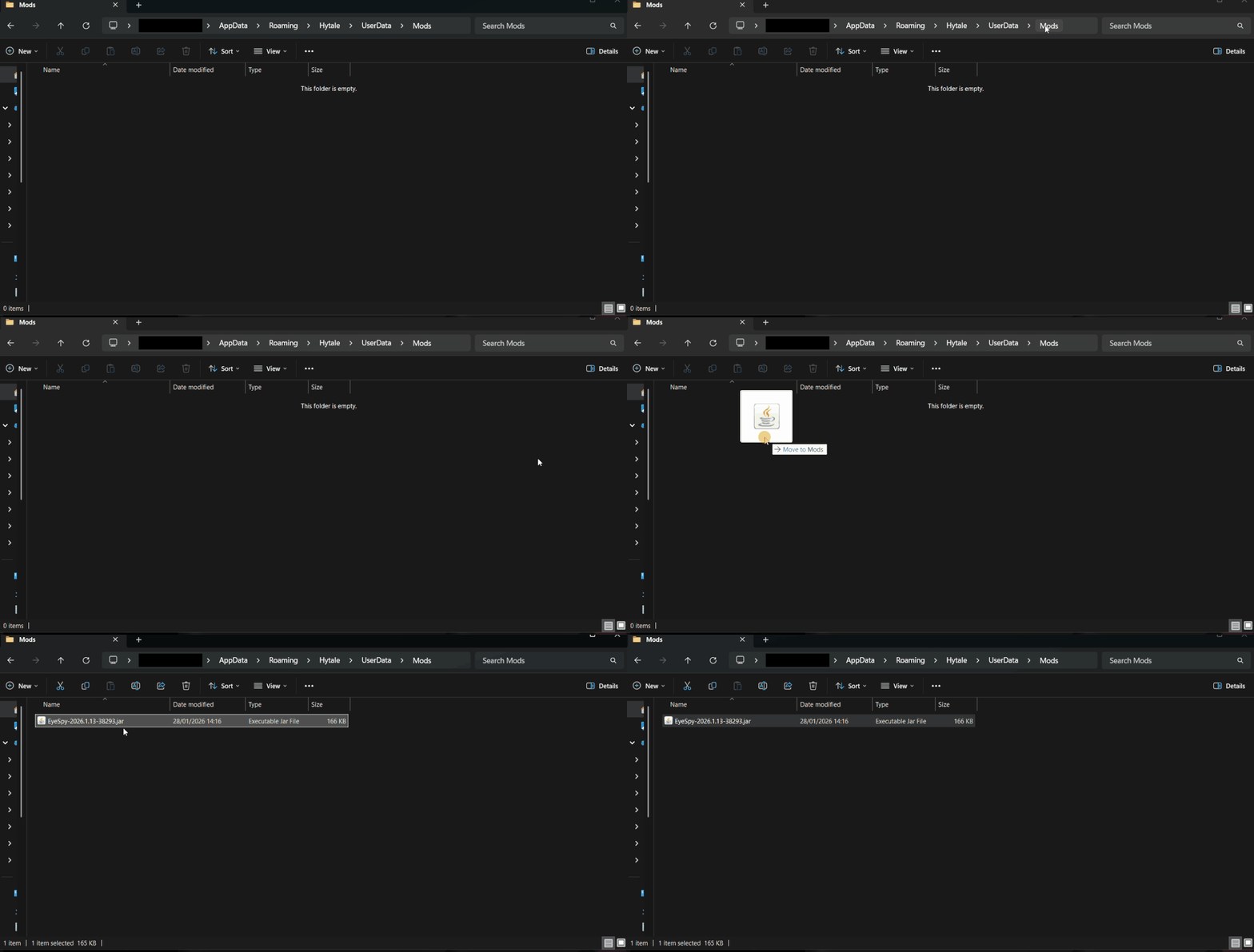
Ok, we've done the hardest part now, but it isn't over yet. You still need to activate the mod!
First I will go over applying it to a new world.
Press the create world button and select the gamemode. Don't create the world yet – You need to apply the mod!
Press the little settings button (a cog) at the bottom. This is the world options. On the left you should see a list saying Mods. If you have done it right, the mod(s) you installed should show up there! Just select the mod and a tick should show up. Then apply the settings.
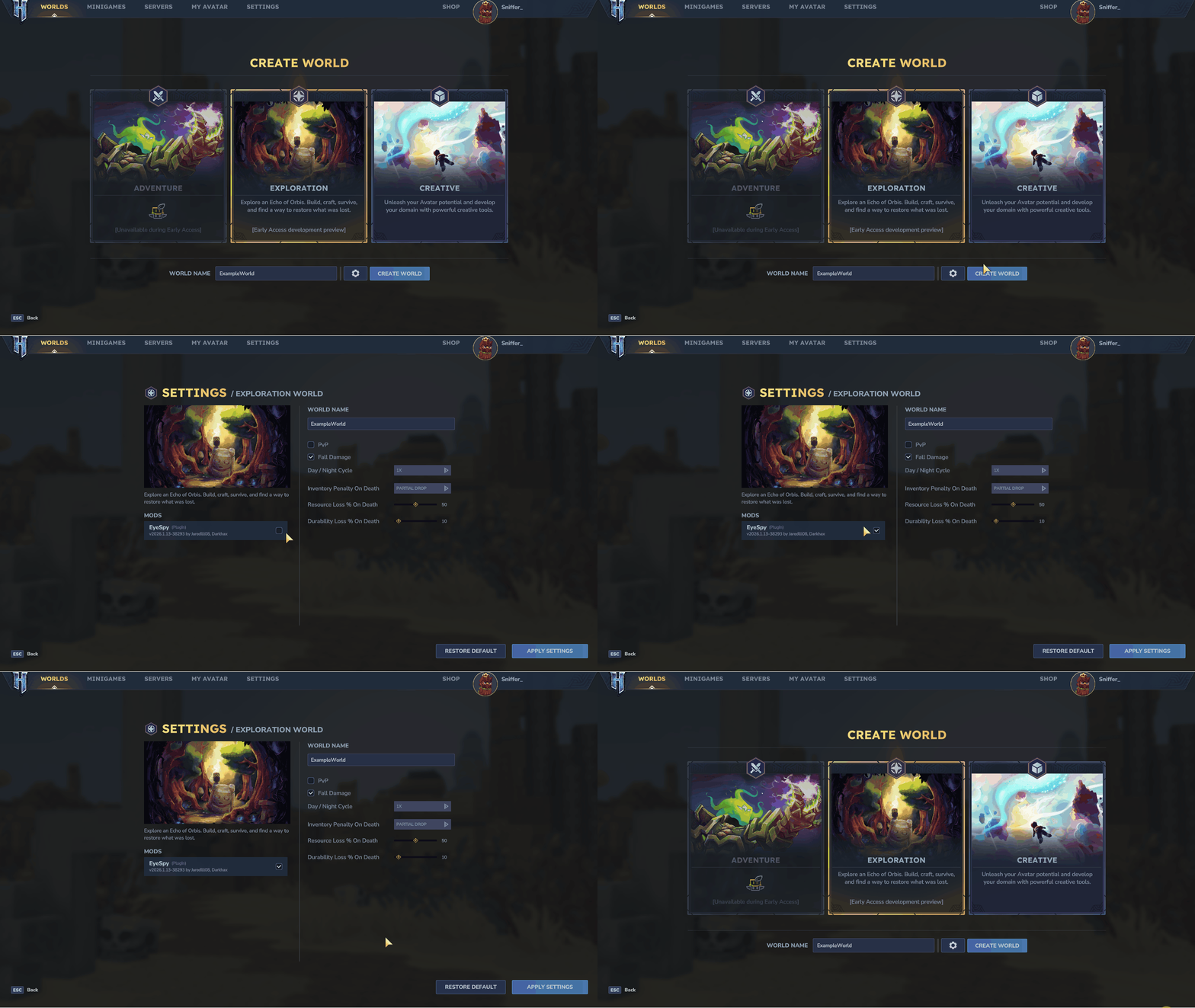
Now when you load the world the mod should be applied!
Now the second way is applying it to an already existing world or server.
To do this, go to the worlds page and right click the world you want. This will open the world options screen, similar to the one above. Select the mod in the list to activate it an apply the settings. The mod should be active when you join!
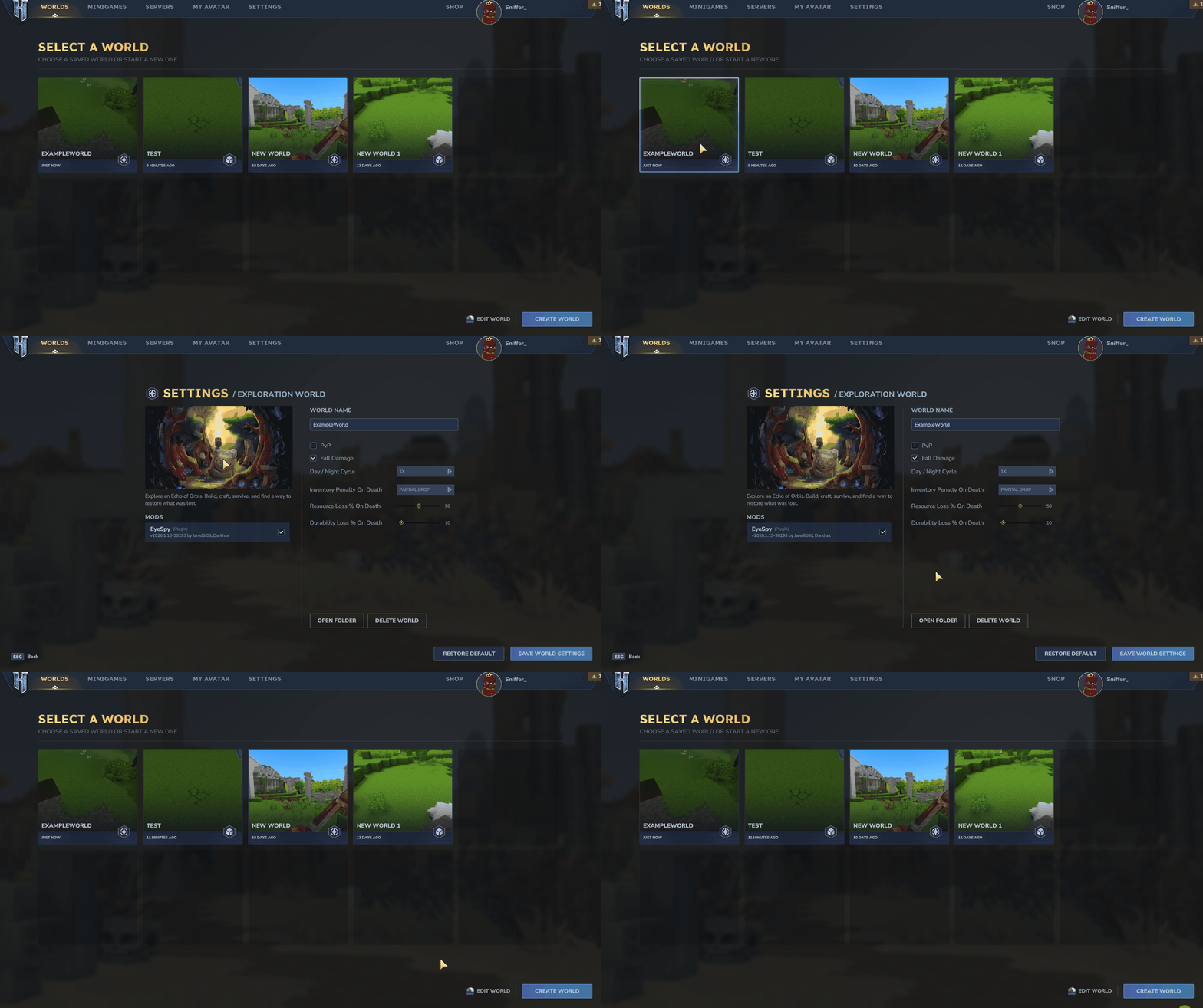
And that's the first method! Now let me go over the second method!
The second option is to install the mod on a single world. This is mainly for testing, but you can use it anyway if you if you want.
Go to the worlds list and, similar to above, right click the world. (If you are making a new world create one and exit it.) This should open the worlds options menu. Press the "Open folder" button Above the restore default and save settings buttons. This will take you to the world save folder. In here is another folder called Mods. (create one if there isn't. Remember the capital M!) Locate the original mod location, for example Downloads and just drag it in. Then tab back into Hytale and save the world settings. The mod should be applied! Easy!
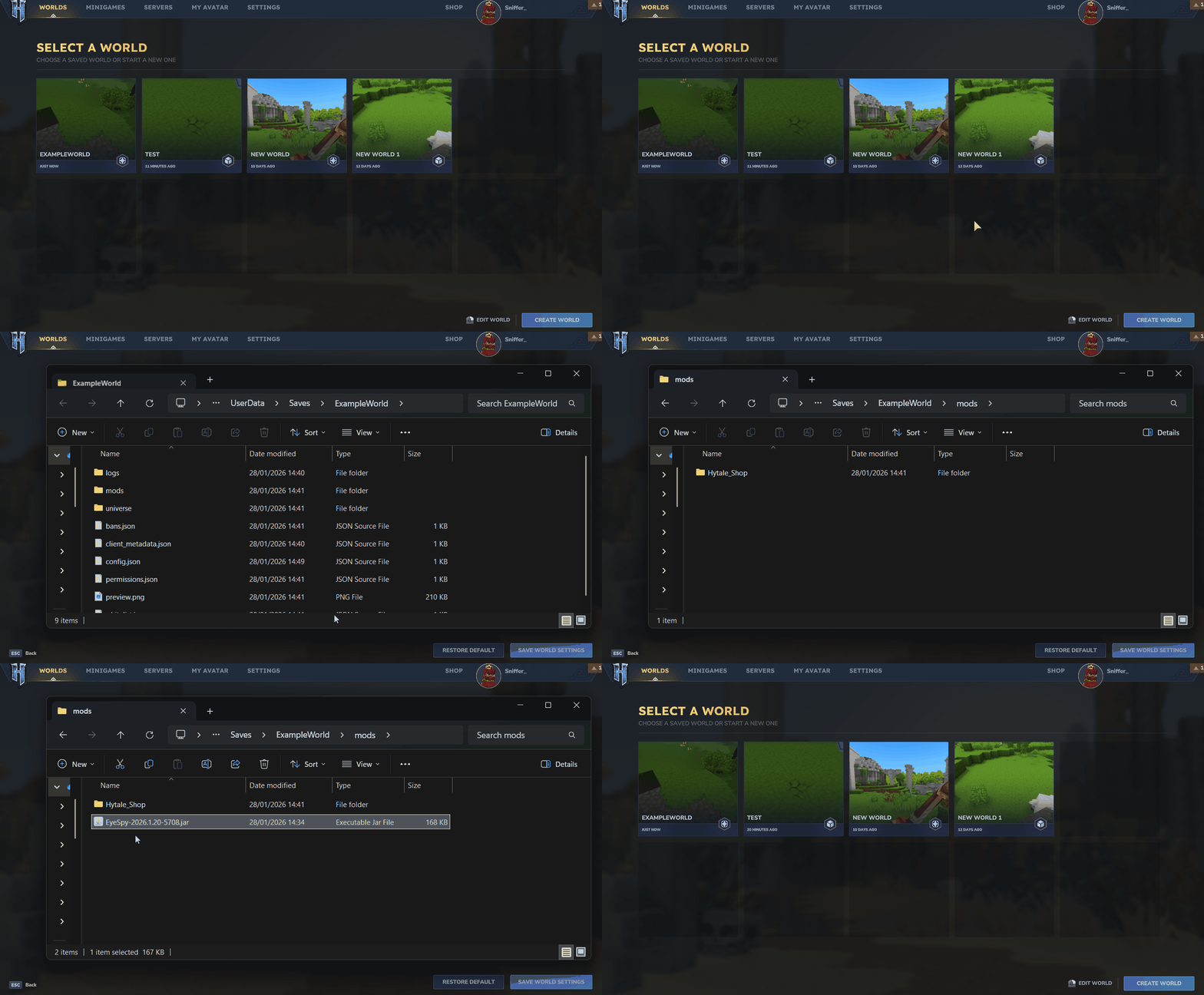
And that's it! How to install mods on Hytale! This blog took ages to make so I hope you find it helpful!
If you have any questions or comments please feel free to say below!
Goodbye!
The two kinds of Hytale mod and the differences between them
There are two kinds of Hytale mods. The first being plugins, which are similar to your traditional Minecraft mod if you are familiar with them. The second being packs, which allow you to edit textures, models, UIs and even add new blocks, items structures etc.Here are the key differences:
Packs:
- No coding required
- Created with the asset editor
- Custom blocks, items, weather, NPCs, etc.
- Changing block, item, UI, etc. textures
- Exported as zip files
- Most developers will start with these, as they are easier to use and require little to no coding knowledge.
Plugins:
- Created with JDK (Java Development Kit)
- Completely customizable and almost limitless functionality
- Uses advanced Java
- Exported as Jar files
Does this mean they need to be installed differently?
Luckily, no, since they are both classed as "mods", they are both installed the same way! The only difference is the internal files in them. I made this section to give people better knowledge on the types of mod.
Anyway, let's start the tutorial!
Where and how to download Hytale mods
To download a Hytale mod, you first need to find a site to get them. The ones I personally recommend are here on this site or the Curseforge Hytale mods page. Once you have found a mod, download it and save it somewhere like your downloads folder. It should have a .zip or .jar extension. (If you can't see file extensions go to View > Show and check "File name extensions" in the file explorer.
If you can't find the download button, it is here for this site, just under the title:
And for Curseforge you go to Files, then click on the version of the mod you want and press download. A 5 second timer should start before it gets saved to your device.
(Mod is EyeSpy by DarkhaxDev)
Ok, now let's move on to actually installing the mod!
Option 1: Installing mods on the full Hytale installation (Recommended)
The first method is installing the mod in your main mods folder in the Hytale installation folder. This is the main and recommended way to install mods.To install the mod, go to the Hytale folder. The directories are listed below:
- Windows 10 or 11: %appdata%/Hytale (just press Win + R and paste the directory in to go to it quickly)
- Linux: $XDG_DATA_HOME/Hytale
- macOS: ~/Library/Application Support/Hytale/UserData/
Now it's as simple as getting the location where you saved the mod (e.g. your downloads folder) and dragging it into the folder!
Ok, we've done the hardest part now, but it isn't over yet. You still need to activate the mod!
First I will go over applying it to a new world.
Press the create world button and select the gamemode. Don't create the world yet – You need to apply the mod!
Press the little settings button (a cog) at the bottom. This is the world options. On the left you should see a list saying Mods. If you have done it right, the mod(s) you installed should show up there! Just select the mod and a tick should show up. Then apply the settings.
Now when you load the world the mod should be applied!
Now the second way is applying it to an already existing world or server.
To do this, go to the worlds page and right click the world you want. This will open the world options screen, similar to the one above. Select the mod in the list to activate it an apply the settings. The mod should be active when you join!
And that's the first method! Now let me go over the second method!
Option 2: Installing the mod on a single world
The second option is to install the mod on a single world. This is mainly for testing, but you can use it anyway if you if you want.
Go to the worlds list and, similar to above, right click the world. (If you are making a new world create one and exit it.) This should open the worlds options menu. Press the "Open folder" button Above the restore default and save settings buttons. This will take you to the world save folder. In here is another folder called Mods. (create one if there isn't. Remember the capital M!) Locate the original mod location, for example Downloads and just drag it in. Then tab back into Hytale and save the world settings. The mod should be applied! Easy!
And that's it! How to install mods on Hytale! This blog took ages to make so I hope you find it helpful!
If you have any questions or comments please feel free to say below!
Goodbye!
| Tags |
68
6


 Neo64
Neo64 AvatarKage
 astrxstqr
 Dysis
Dysis Keekee1253
 xXimaginesellingXx
 BOOKOFDREWSBG
 StarryWayWishes
 zigzag5570
 NoahzArkade
Want to comment or give Power Crystals?